Installation of the PatchMon Agent
Introduction
Individual NoteHost : This is pre version 1.3.0 , new one needs to be made
The agent installer script authenticates with PatchMon server and proceeds to install the patchmon-agent.sh.
Adding a host:
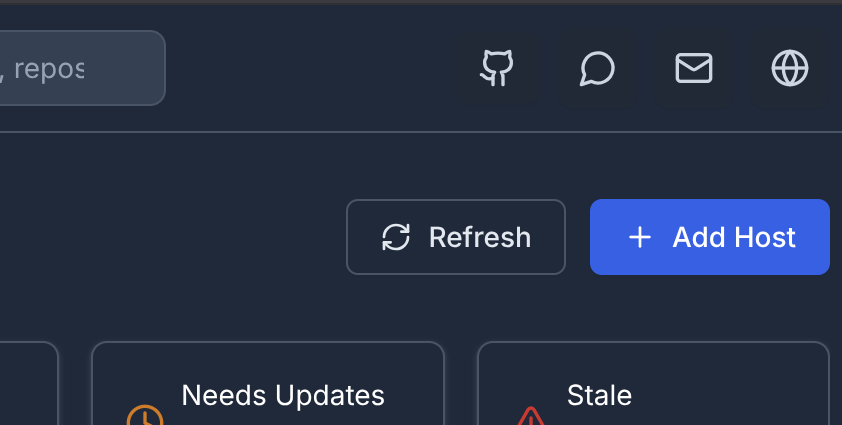
Go to the Hosts page, press Add host:
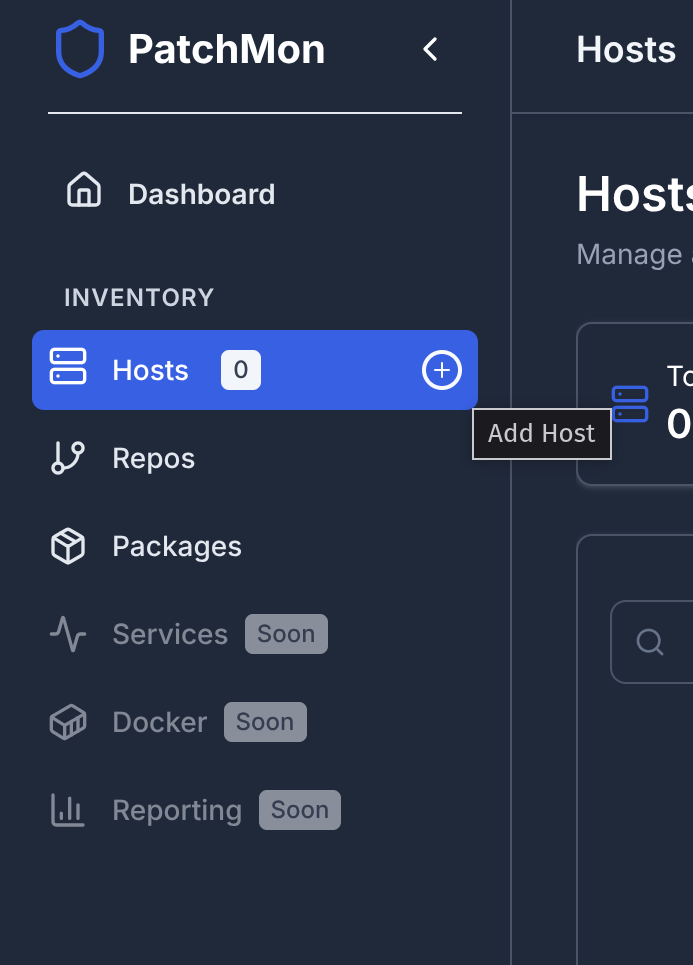
Press Add host either from the left hand side menu or on the top right of the hostspage page:
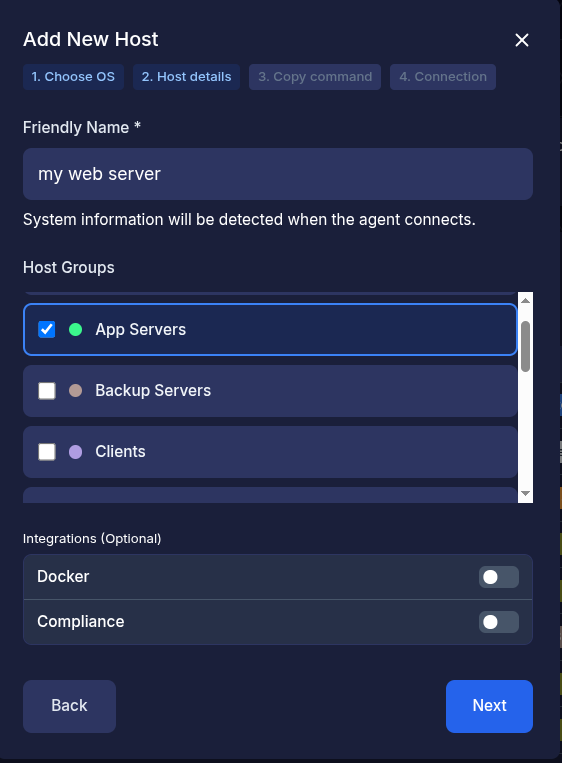
You will besee greeteda byselection thisbox screento wherechose youfrom enterfor Linux, FreeBSD or Windows.
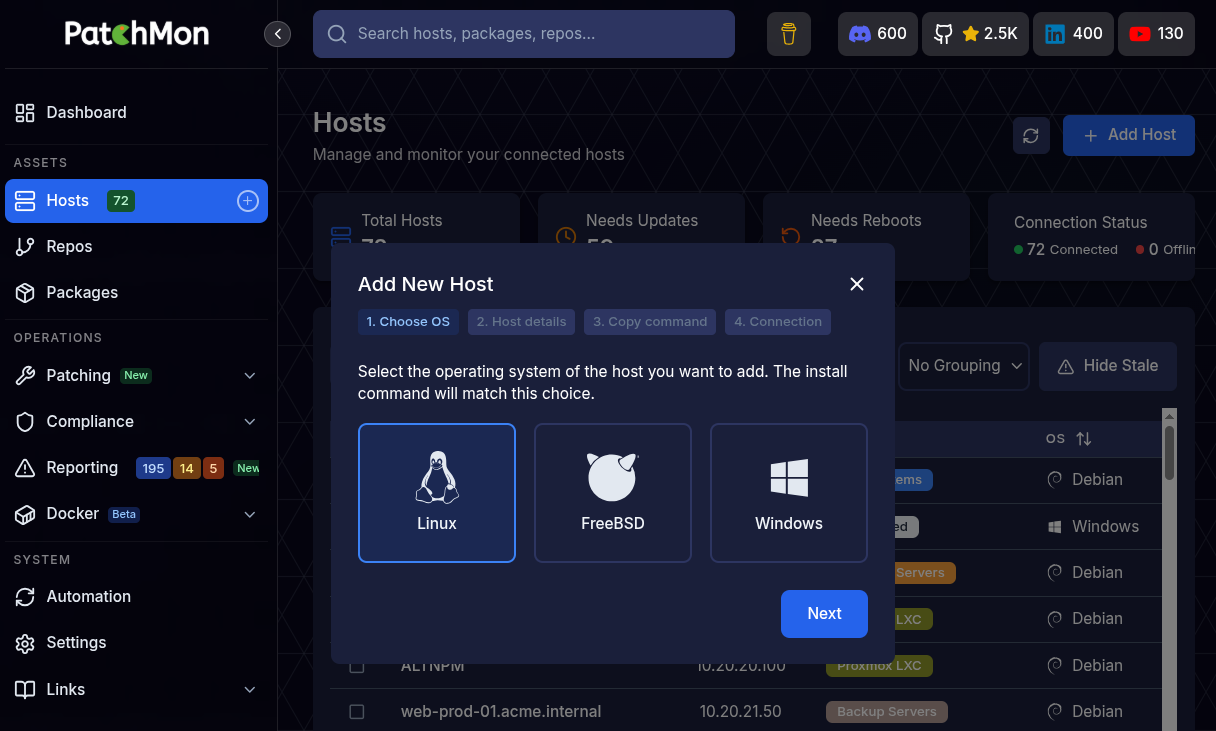
Linux
- Press Next
- Enter in
athe friendly nameforof theserver:host - Optionally select the host groups you want to associate this host with. Host groups can be added in Settings -> Host groups
- Optionally toggle integrations such as Docker or Compliance
- Docker integration - Allows docker inventory (stacks, containers, images, networks, volumes etc) to propagate through to PatchMon for visualisation
- Compliance integration - Allows for OpenSCAP and Docker bench scans based agains CIS Benchmarking to take place. Our advice is to leave this disabled until after installation so that you can monitor the status of its installation etc, though once you've done it a few times there is no harm in enabling it later through the hosts individual settings.
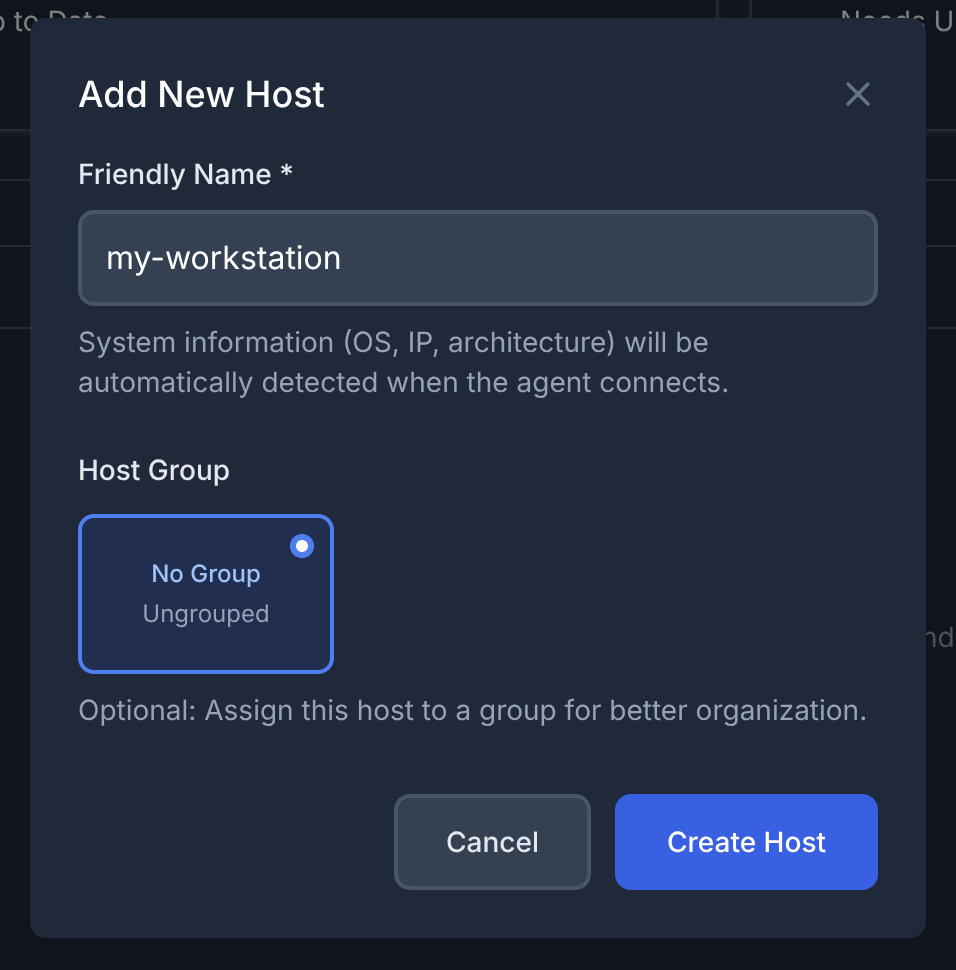
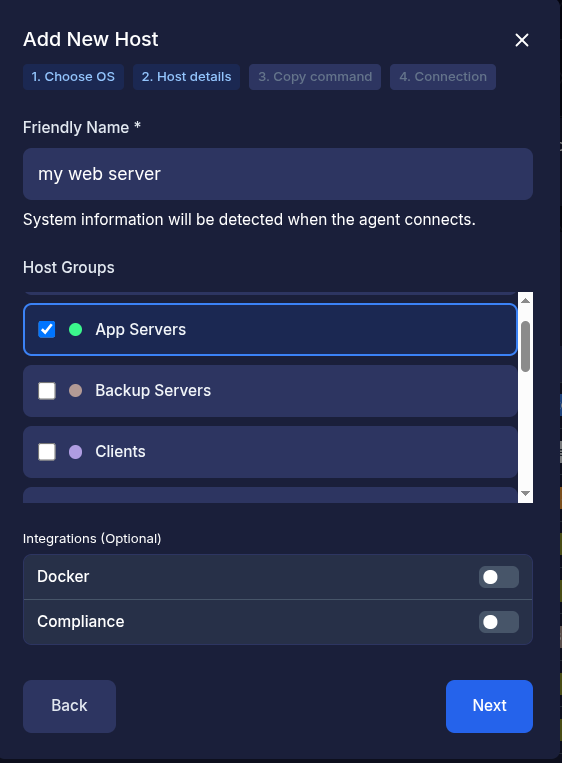
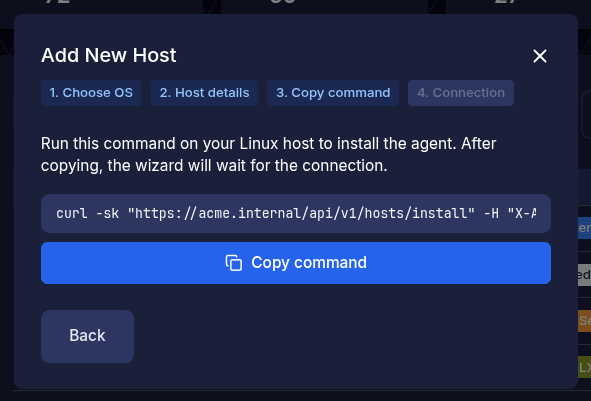
Groups - Press Next and you will
showbeemptypresentedunlesswith a curl command to run on your server or Linux host to manage.
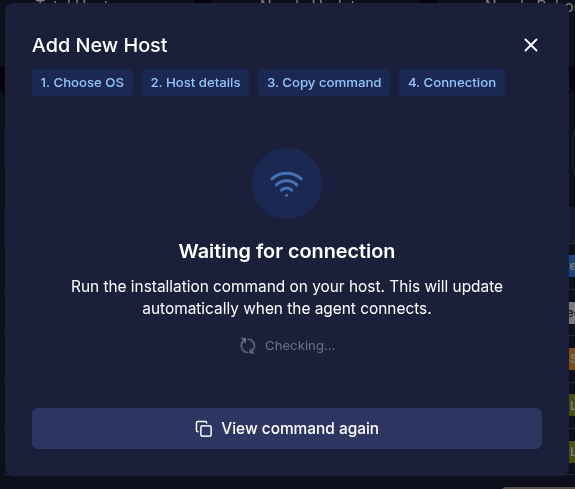
Once the "Copy" button is pressed then PatchMon will expect that you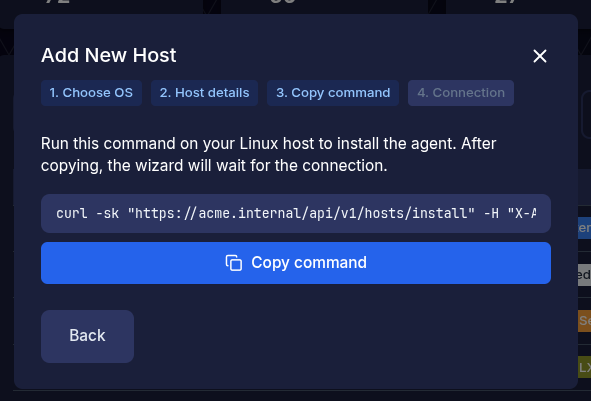
havepasteaddedthisgroupsinalready.right away and will present a waiting modal like so : -
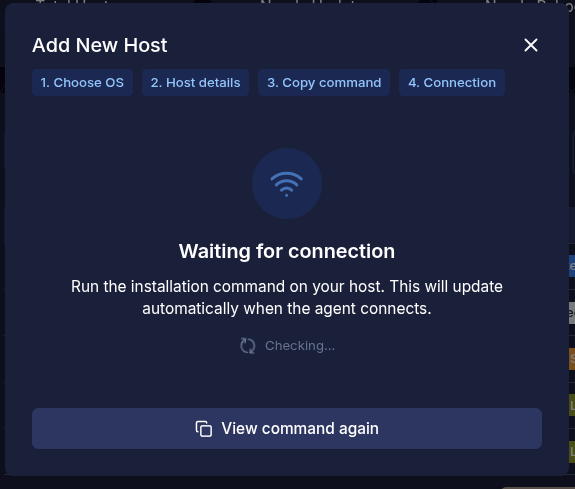
Here - Now
howon the host you are toaddpastegroupsthisAsinsoonand you'll see PatchMon installing the agent. Please run this asyouroot - Once
"CreatepastedHost"in and the command runs, it willredirectfinishyouwithtothis:
ispressthecredentials
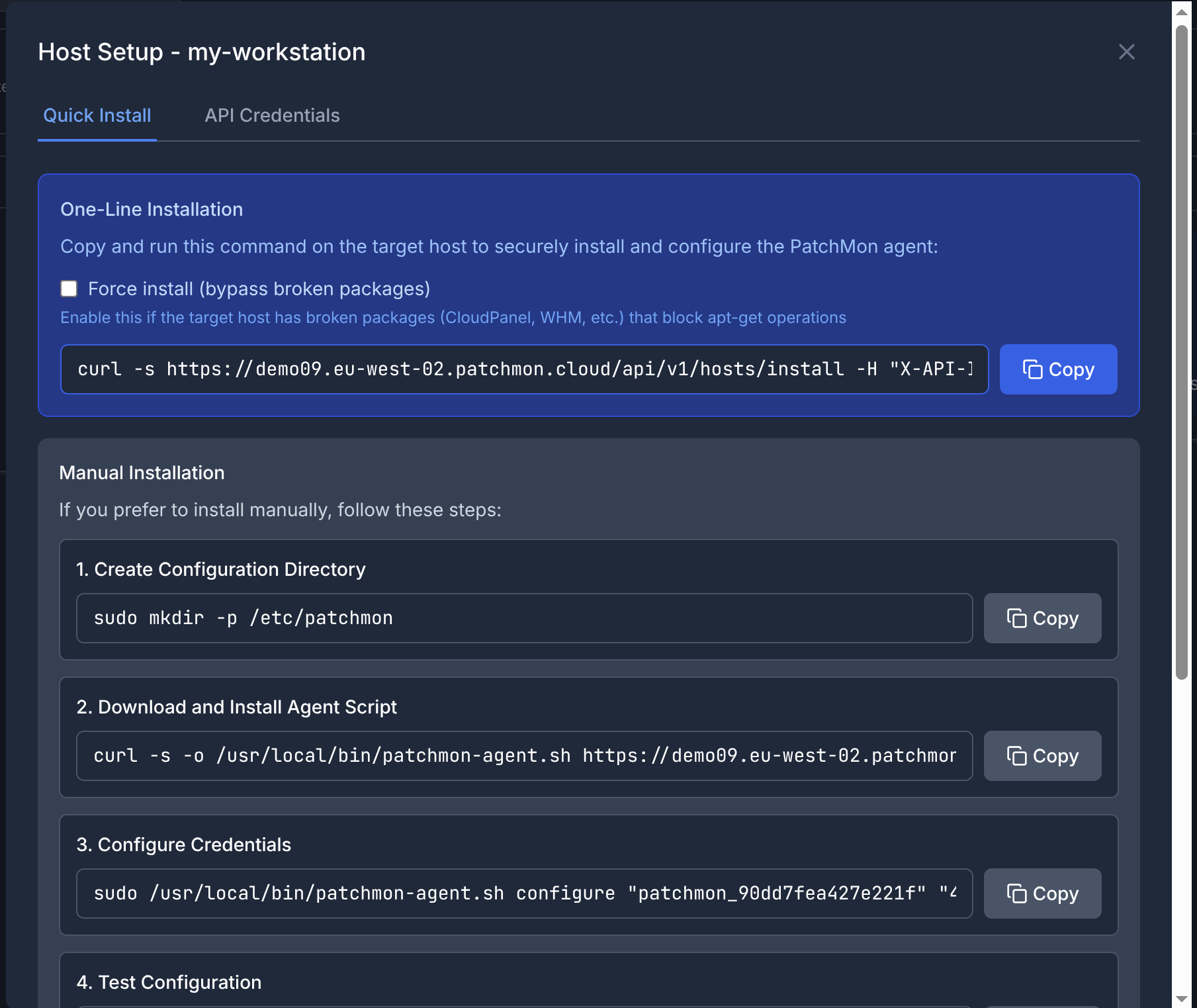
Now we have two ways of installation however we should first take care of a few things:
The first is the checkbox "Force Install (bypass broken packages)"
At times in Linux, certain packages are broken and throw dependency issues when installing software which break the installation script. If you find this is happening then ideally you need to fix your server before you install more software, hoever that's not always possible so by pressing this flag it will bypass package manager issues.
Secondly, at times you may have a self-signed certificate in which this curl command needs an extra flag to go through. This would apply to both the Installation command as well as the agent communication within.Hereis how to enable the -k flag installation-wide in settings.
Installing the agent in the Automated way
The one-line command includes the api-id and api-key which is utilized to download the PatchMon agent as well as to populate the credentials.txt file.
SSH into your server, ensure you are root and lets copy and paste this one-line command and see the output:
  🕐 Verifying system datetime and timezone...

📅 Current System Date/Time:
   • Date/Time: Sat Oct  4 07:16:00 PM BST 2025
   • Timezone: Europe/London

⚠️  Non-interactive installation detected

Please verify the date/time shown above is correct.
If the date/time is incorrect, it may cause issues with:
   • Logging timestamps
   • Scheduled updates
   • Data synchronization

✅ Continuing with installation...
✅ ✅ Date/time verification completed (assumed correct)

ℹ️  🚀 StartingSUCCESS: PatchMon Agent Installation...service ℹ️  📋 Server: https://demo09.eu-west-02.patchmon.cloud
ℹ️  🔑 API ID: patchmon_90dd7fe...
ℹ️  🆔 Machine ID: a9295dcd387f979b...

🔧 Installation Diagnostics:
   • URL: https://demo09.eu-west-02.patchmon.cloud
   • CURL FLAGS: -s
   • API ID: patchmon_90dd7fe...
   • API Key: 49ff8a6f6b67abf5...

ℹ️  📦 Installing required dependencies...

ℹ️  Detected apt-get (Debian/Ubuntu)

ℹ️  Updating package lists...
Hit:1 https://cli.github.com/packages stable InRelease
Hit:2 https://linux.teamviewer.com/deb stable InRelease
Hit:3 https://download.docker.com/linux/ubuntu jammy InRelease
Hit:4 https://ppa.launchpadcontent.net/damentz/liquorix/ubuntu jammy InRelease
Hit:5 https://deb.nodesource.com/node_20.x nodistro InRelease
Hit:6 https://packages.microsoft.com/ubuntu/20.04/prod focal InRelease
Hit:7 https://packages.microsoft.com/repos/code stable InRelease
Hit:8 http://apt.pop-os.org/proprietary jammy InRelease
Hit:9 http://apt.pop-os.org/release jammy InRelease
Hit:10 https://apt.postgresql.org/pub/repos/apt jammy-pgdg InRelease
Hit:12 https://ngrok-agent.s3.amazonaws.com buster InRelease
Hit:13 http://apt.pop-os.org/ubuntu jammy InRelease
Hit:14 http://apt.pop-os.org/ubuntu jammy-security InRelease
Hit:15 http://apt.pop-os.org/ubuntu jammy-updates InRelease
Hit:11 https://packagecloud.io/slacktechnologies/slack/debian jessie InRelease
Hit:16 http://apt.pop-os.org/ubuntu jammy-backports InRelease
Reading package lists... Done
N: Skipping acquire of configured file 'main/binary-i386/Packages' as repository 'https://apt.postgresql.org/pub/repos/apt jammy-pgdg InRelease' doesn't support architecture 'i386'

ℹ️  Installing jq, curl, and bc...
✅ All required packages are already installed

✅ Dependencies installation completed

ℹ️  📁 Setting up configuration directory...
ℹ️  📁 Creating new configuration directory...
ℹ️  🔐 Creating API credentials file...
ℹ️  📥 Downloading PatchMon agent script...
ℹ️  📋 Agent version: 1.2.7
ℹ️  🔍 Checking if machine is already enrolled...
✅ ✅ Machine not yet enrolled - proceeding with installation
ℹ️  🧪 Testing API credentials and connectivity...
✅ API credentials are valid
✅ ✅ TEST: API credentials are valid and server is reachable
ℹ️  📊 Sending initial package data to server...
ℹ️  Verifying system datetime and timezone...
ℹ️  Collecting system information...
ℹ️  Sending update to PatchMon server...
✅ Update sentstarted successfully
(190INFO: packagesWebSocket processed)connection ℹ️established
Checking crontab configuration...
ℹ️  Updating crontab with current policy...
ℹ️  Setting update interval to 60 minutes
✅ Crontab updated successfully (duplicates removed)
✅ Crontab updated successfully
✅ ✅ UPDATE: Initial package data sent successfully
ℹ️  ✅ Automated updates configured by agent
✅ 🎉SUCCESS: PatchMon Agent installation completed successfully!

📋

Installation Summary:
   • Configuration directory: /etc/patchmon
   • Agent binary installed: /usr/local/bin/patchmon-agent.shagent
   • Architecture: amd64
   • Dependencies installed: jq, curl, bccurl
   • AutomatedSystemd updatesservice configured viaand crontabrunning
   • API credentials configured and tested
   • UpdateWebSocket scheduleconnection managedestablished
   by• agentLogs 🔧directory: /etc/patchmon/logs

Management Commands:
   • Test connection: /usr/local/bin/patchmon-agent.shagent testping
   • Manual update:report: /usr/local/bin/patchmon-agent.shagent updatereport
   • Check status: /usr/local/bin/patchmon-agent.shagent diagnostics
   ✅• ✅Service status: systemctl status patchmon-agent
   • Service logs: journalctl -u patchmon-agent -f
   • Restart service: systemctl restart patchmon-agent

SUCCESS: Your system is now being monitored by PatchMon!
Lets go through what this script has done:
Asked you if the Time is correct, this is for informational purposes and it should be correct if it isn't. It causes issues with logs etc. Set that if it isn't rightThe script wants to installjq bc curlFor the agent to work properly.It will install the credentials file in the location :
/etc/patchmon/credentialsIt's important to note that this credentials file includes the PATCHMON_URL="https://yourinstance.domiain", Ensure this is correct if you have issues connecting to the agent after changing urls or ports
The Agent script location is in the following location:
/usr/local/bin/patchmon-agent.sh
Once the installation is done, Click off the page in PatchMon and refresh the hosts page.
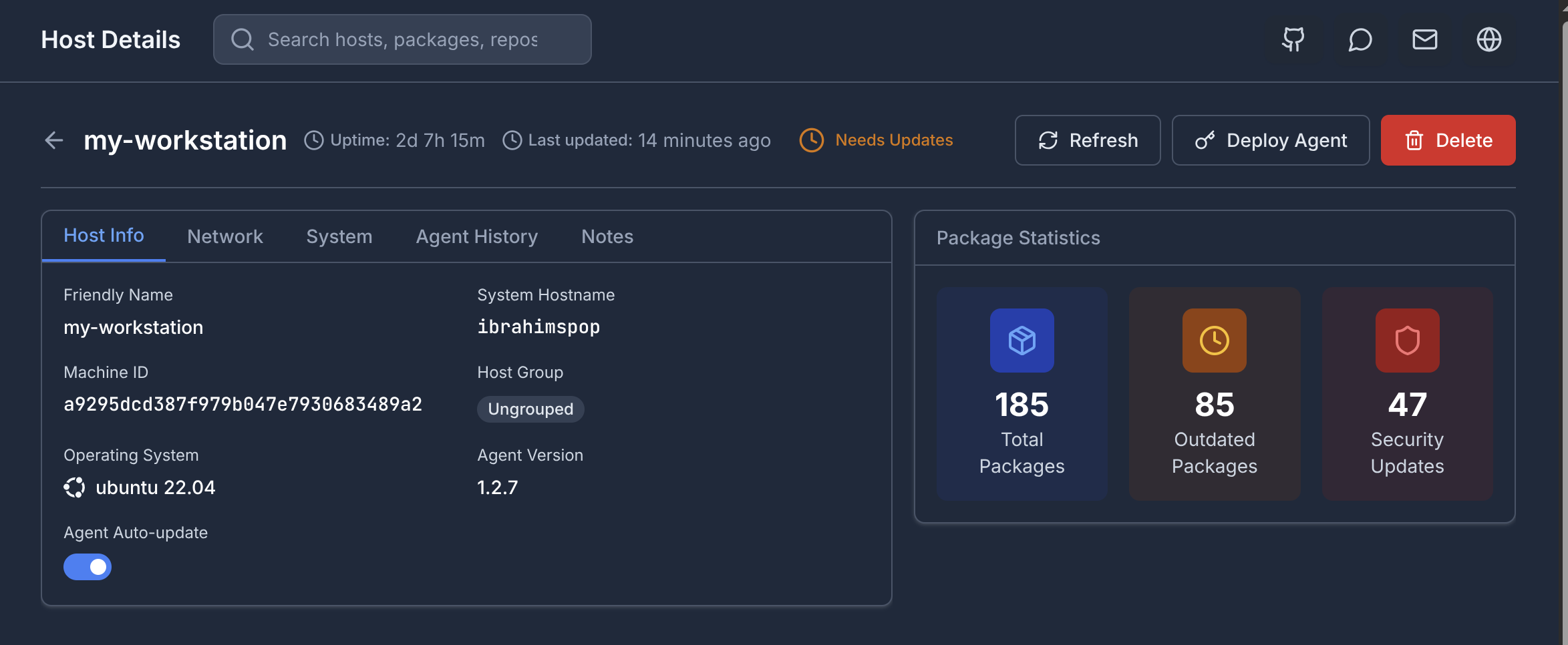
You will see the information of your host now showing along with all the other information: