Installation of the PatchMon Agent
IndividualAdd Host Addingwizard via the Gui Methodmethod
Press Add host either from the left hand side menu or on the top right of the page when on the Hosts Page:
You will see a selection box to chose from for Linux, FreeBSD or Windows.
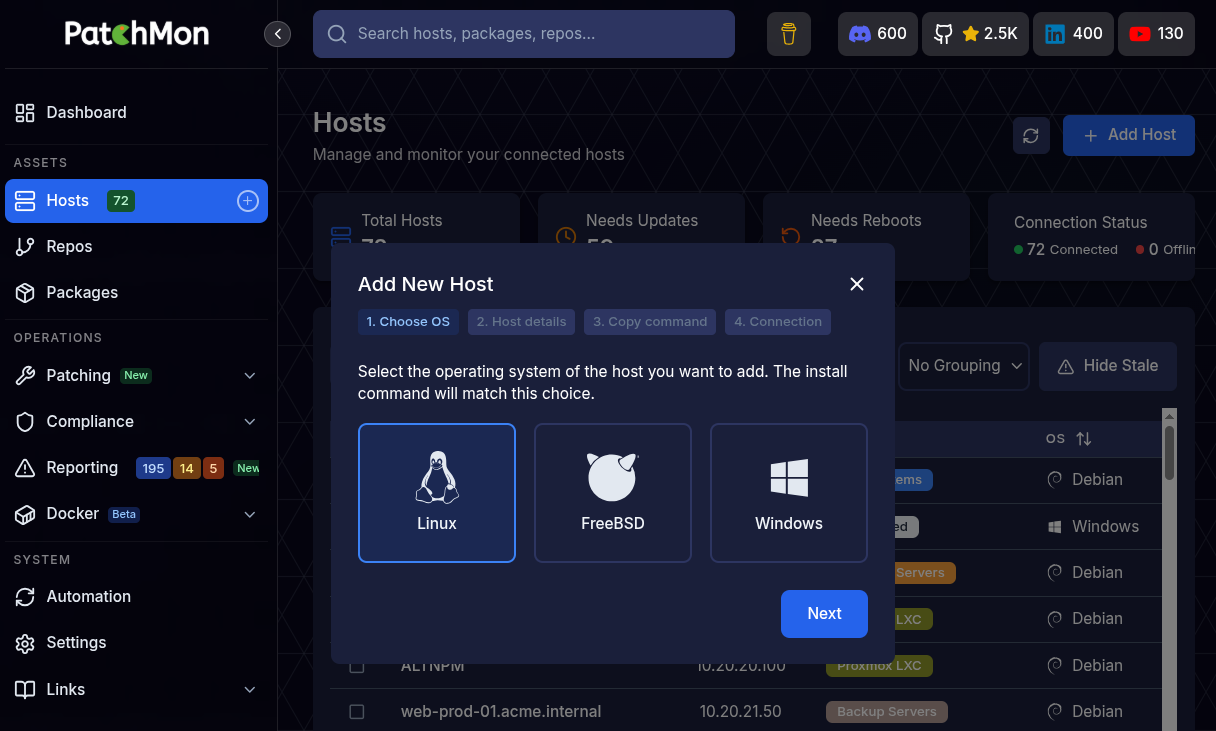
Linux
- Press Next
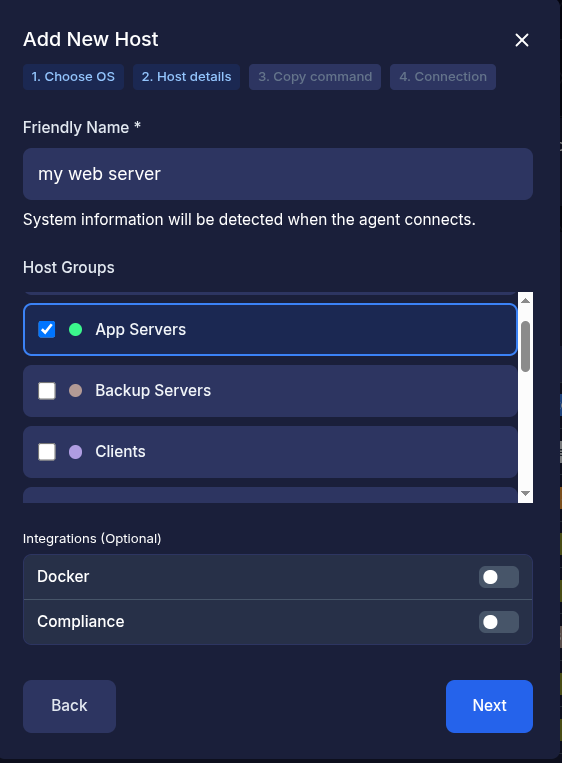
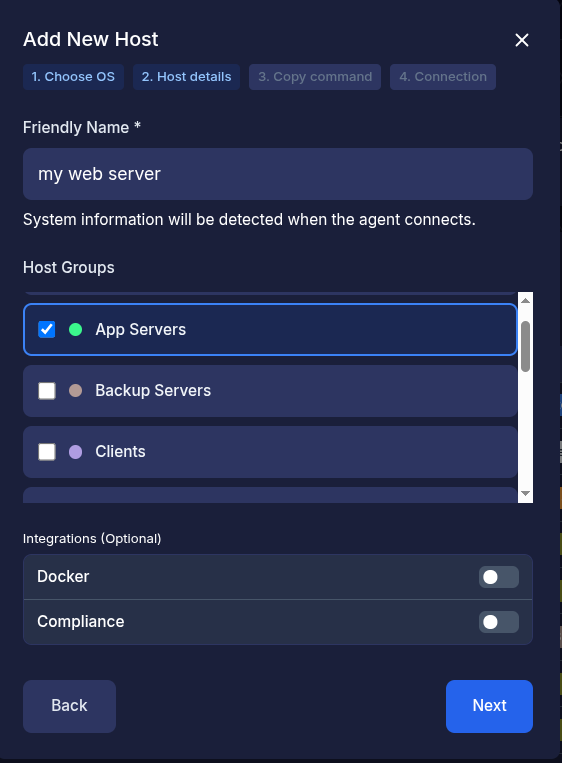
- Enter in the friendly name of the host
- Optionally select the host groups you want to associate this host with. Host groups can be added in Settings -> Host groups
- Optionally toggle integrations such as Docker or Compliance
- Docker integration - Allows docker inventory (stacks, containers, images, networks, volumes etc) to propagate through to PatchMon for visualisation
- Compliance integration - Allows for OpenSCAP and Docker bench scans based agains CIS Benchmarking to take place. Our advice is to leave this disabled until after installation so that you can monitor the status of its installation etc, though once you've done it a few times there is no harm in enabling it later through the hosts individual settings.
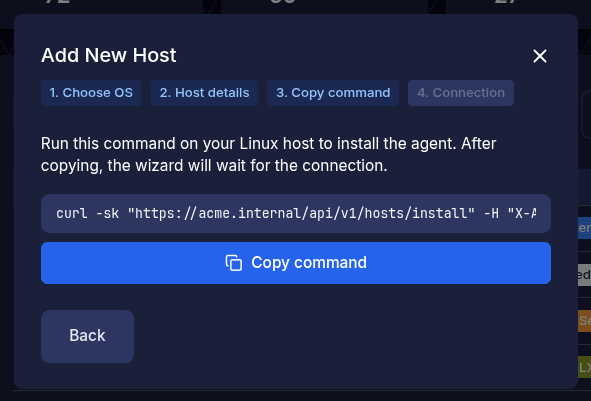
- Press Next and you will be presented with a curl command to run on your server or Linux host to manage.
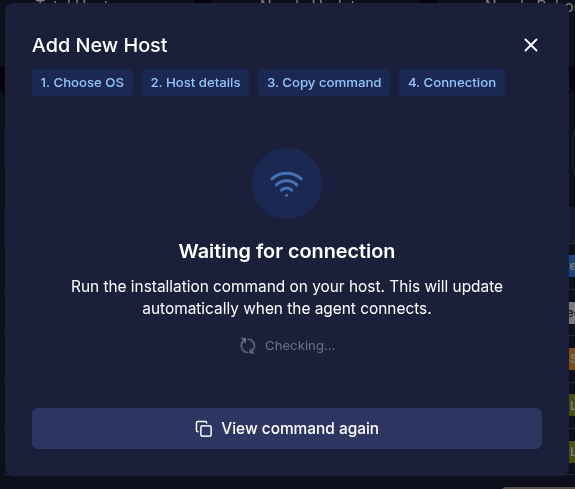
Once the "Copy" button is pressed then PatchMon will expect that you paste this in right away and will present a waiting modal like so :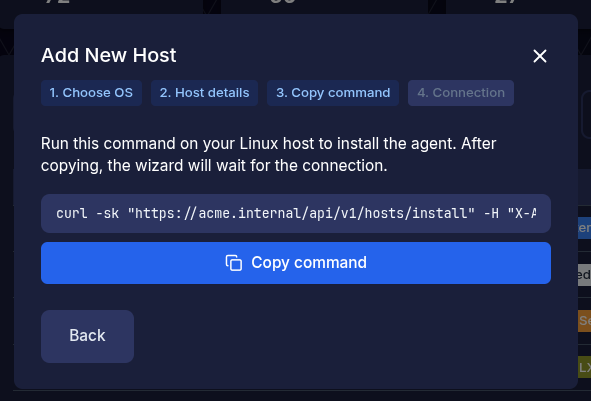
-
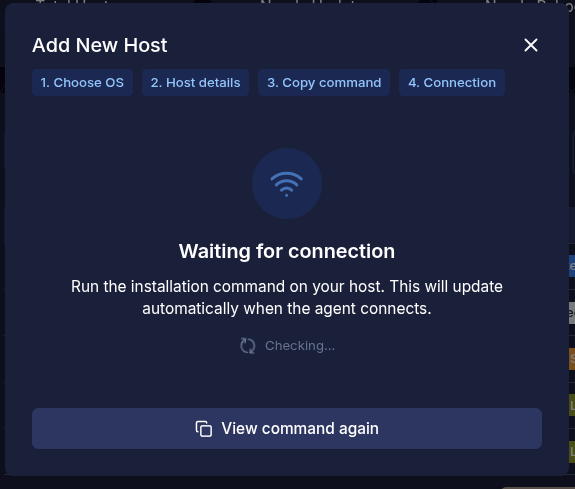
- Now on the host you are to paste this in and you'll see PatchMon installing the agent. Please run this as root
- Once pasted in and the command runs, it will finish with this:
SUCCESS: PatchMon Agent service started successfully
INFO: WebSocket connection established
SUCCESS: PatchMon Agent installation completed successfully!

Installation Summary:
   • Configuration directory: /etc/patchmon
   • Agent binary installed: /usr/local/bin/patchmon-agent
   • Architecture: amd64
   • Dependencies installed: curl
   • Systemd service configured and running
   • API credentials configured and tested
   • WebSocket connection established
   • Logs directory: /etc/patchmon/logs

Management Commands:
   • Test connection: /usr/local/bin/patchmon-agent ping
   • Manual report: /usr/local/bin/patchmon-agent report
   • Check status: /usr/local/bin/patchmon-agent diagnostics
   • Service status: systemctl status patchmon-agent
   • Service logs: journalctl -u patchmon-agent -f
   • Restart service: systemctl restart patchmon-agent

SUCCESS: Your system is now being monitored by PatchMon!
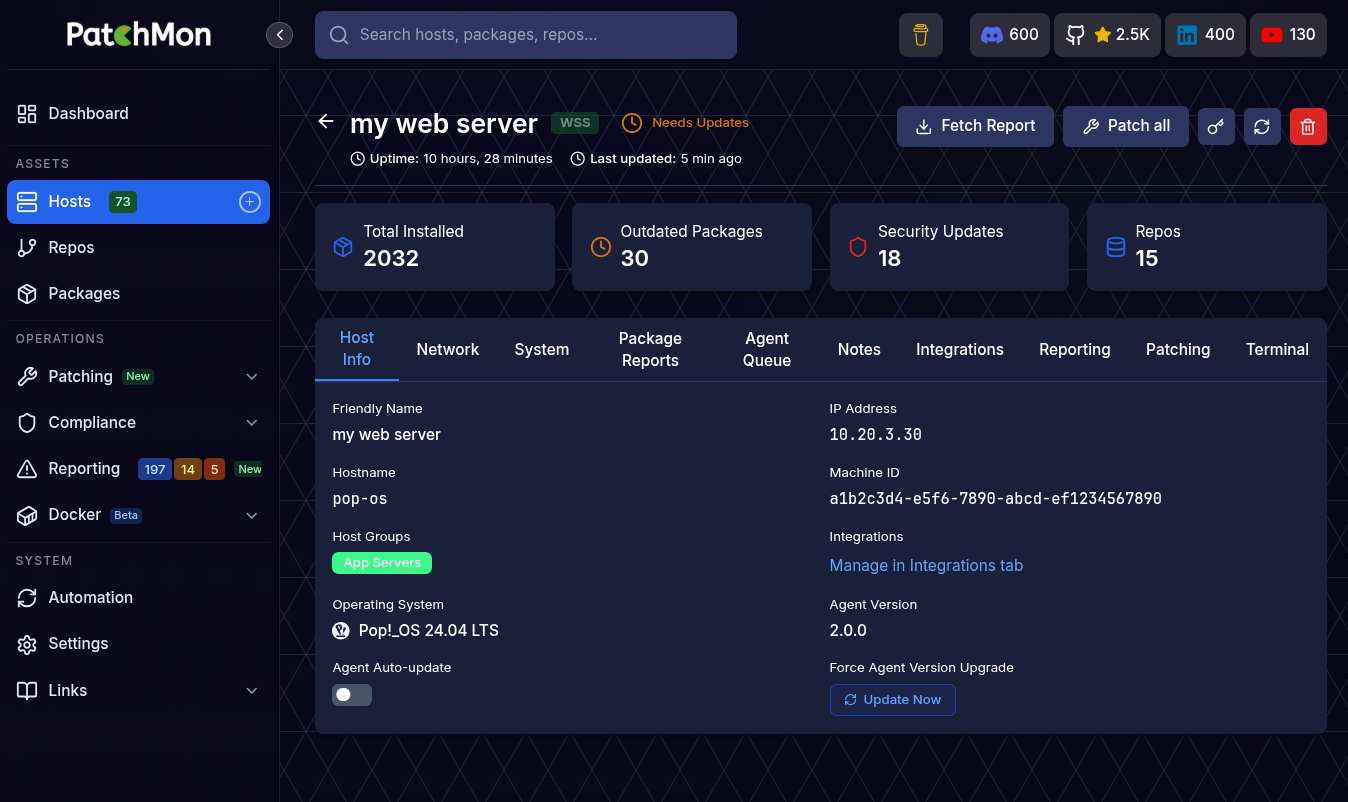
PatchMon will then at this point redirect your page in the browser to the hosts detail view after receiving the initial report.
Note: The first report can sometimes take about 30 seconds, it runs all the package updates from the repositories and collects the data but it shouldn't ever take more than 60 seconds - so do investigate if it does. Another note is that once the agent is installed and the "waiting for report" screen shows, you can come out of that screen and navigate around PatchMon and the report will be fed in its own time.
This is what you should see on the host detail page after the report: